Case studyAI integrationAutomationMVP
Visit TMSTMS
- Web App
- Dashboard
TMS case study: an AI-powered team management system MVP
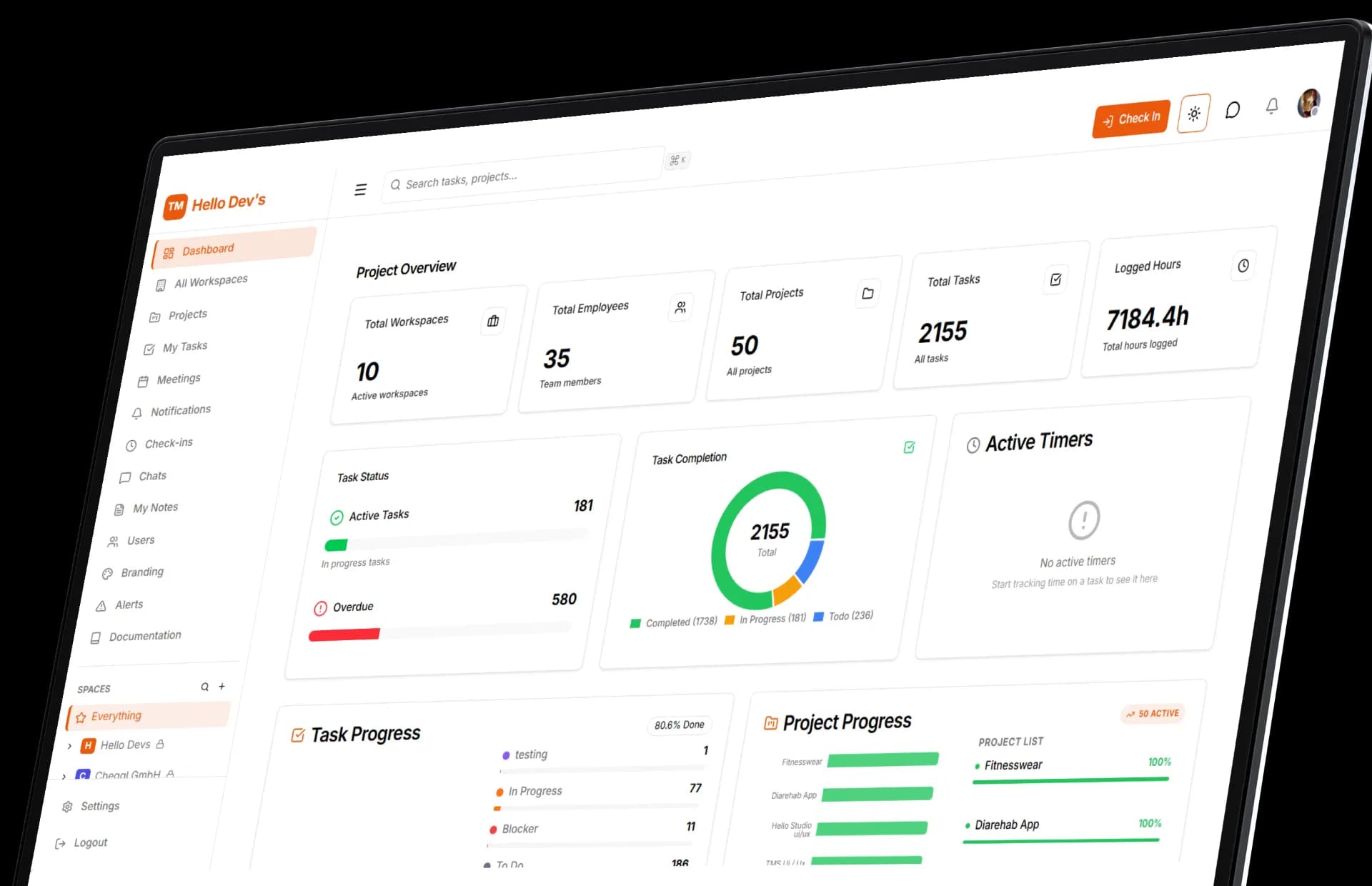
Total Workspaces
10
Active workspaces
Total Employees
35
Team members
Total Projects
50
All projects
Total Tasks
2155
All tasks
Project Overview
TMS is Webguru's own team management system: one SaaS web app where a team plans projects in workspaces, runs sprints on Kanban boards, tracks time with task timers and daily check-ins, chats in real time, and handles leave, shifts and payroll without switching tools. It is our own product, and we use it to run the Webguru team.
We shipped it as an MVP with AI inside the workflow. Upload a brief as a PDF or Word file and OpenAI drafts the project, its description and the task list in a background queue. Scheduled jobs do the chasing: due-date warnings every hour, check-in reminders on weekdays, and a daily check that flags any dashboard number drifting from its 28-day baseline.
- Project
- TMS
- Industry
- Productivity SaaS & Team Operations
- Platform
- Web Application (SaaS Dashboard)
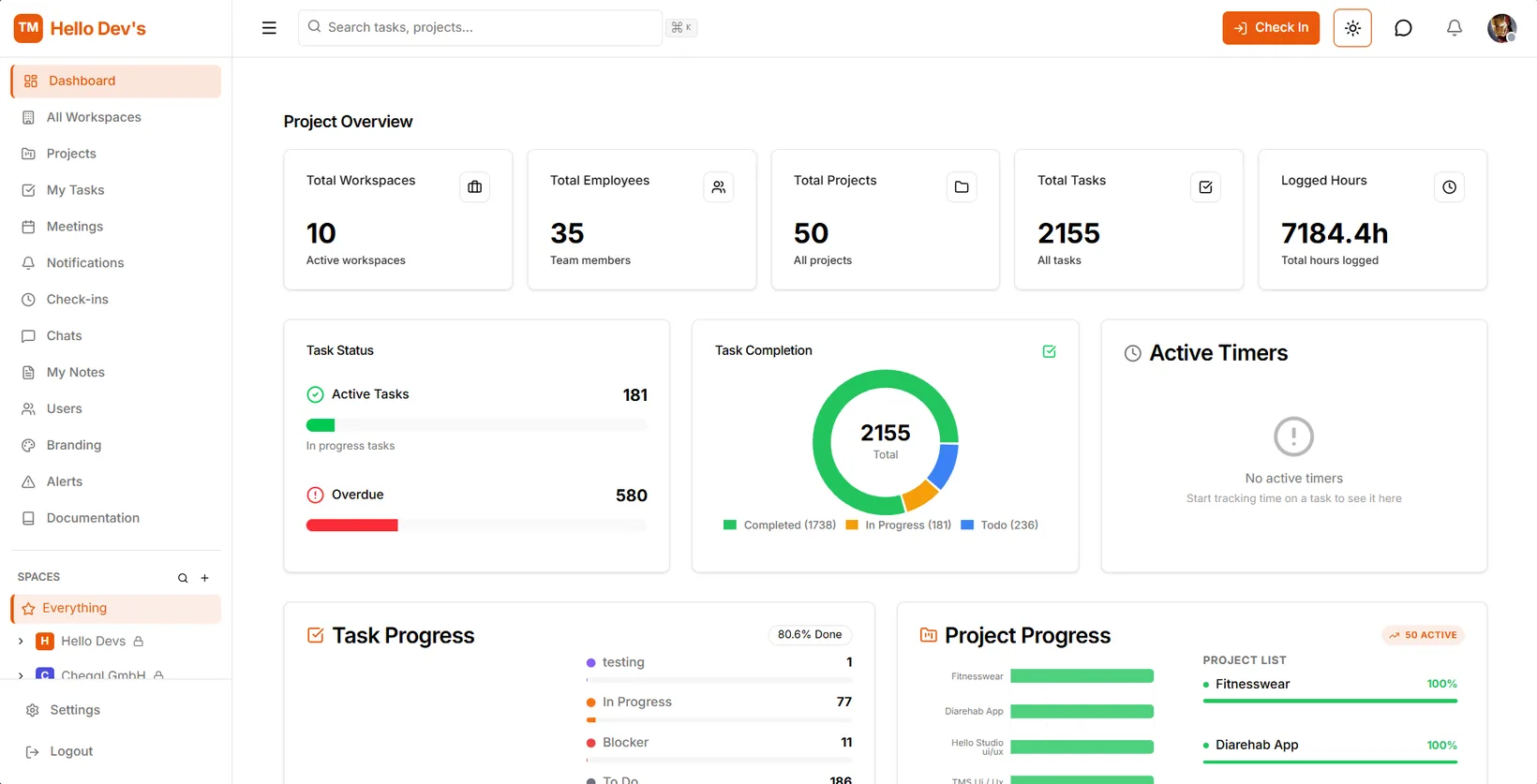
Total Workspaces
10
Active workspaces
Total Employees
35
Team members
Total Projects
50
All projects
Total Tasks
2155
All tasks
TMS in the browser at team.webguru.pk

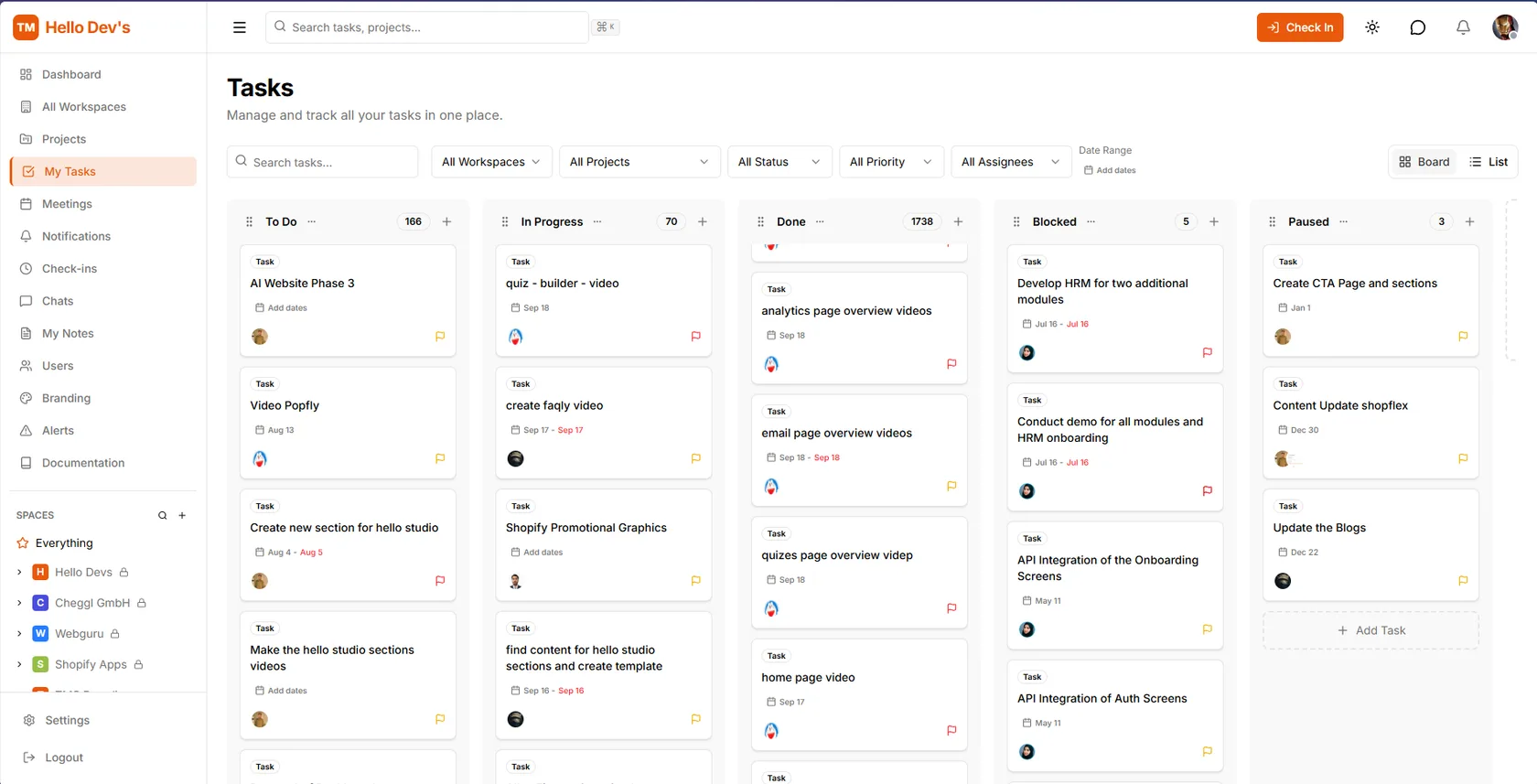
Tasks
Manage and track all your tasks in one place.
- All Workspaces
- All Projects
- All Status
- All Priority
- All Assignees
- To Do166
- In Progress70
- Done1736
- Blocked5
The problem: work without dates or owners
Streamline project tracking and execution across creative and design teams through a structured, single-pane workspace interface.
Add dates
Problems
- Problem 1
Project deadlines and timelines are missing, leading to unclear schedules.
Add dates
- Problem 2
Team members lack ownership, causing confusion over who is accountable.
Aug 13
Solutions
- Solution 1
Assign clear start and target end dates to every active task card.
TMS warns 24 hours before a due date and escalates overdue tasks, checked every hour.
Add dates
- Solution 2
Assign a designated owner or lead to each item in the workspace.
Every task carries assignees, and role-based access decides who can change what.
Aug 13
Interface
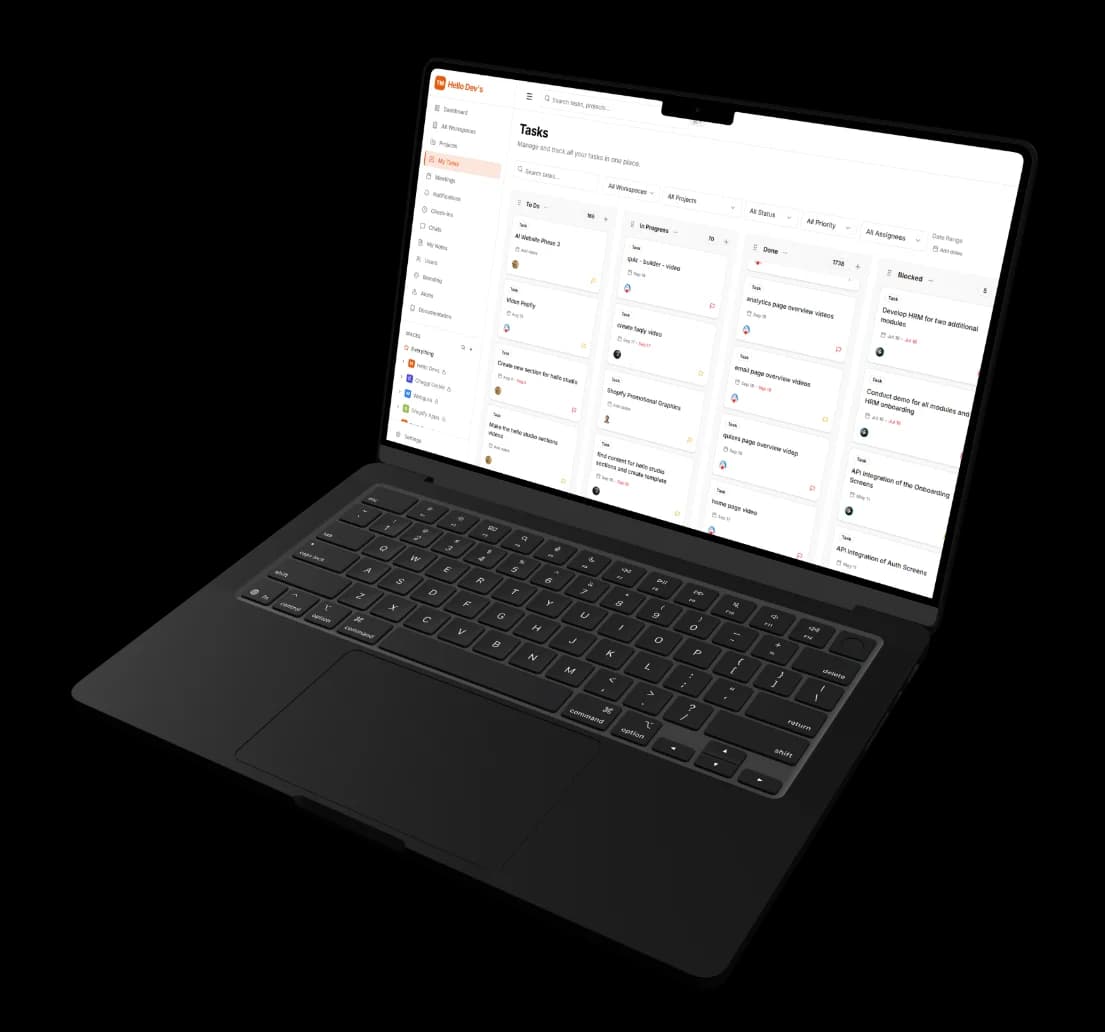
The Tasks page is where most of the day happens: one Kanban board across every workspace, with drag-and-drop between eleven statuses, filters for workspace, project, status, priority, assignee and date range, and a sidebar that keeps spaces, chats, check-ins and notes one click away.
Smart filters
Slice every task by workspace, project, status, priority, assignee or date range.
Spaces sidebar
Workspaces, projects, meetings, check-ins, chats and notes in one navigation.
Kanban columns
Drag cards from To Do to Done; counts, due dates and assignees stay visible.
Dashboard
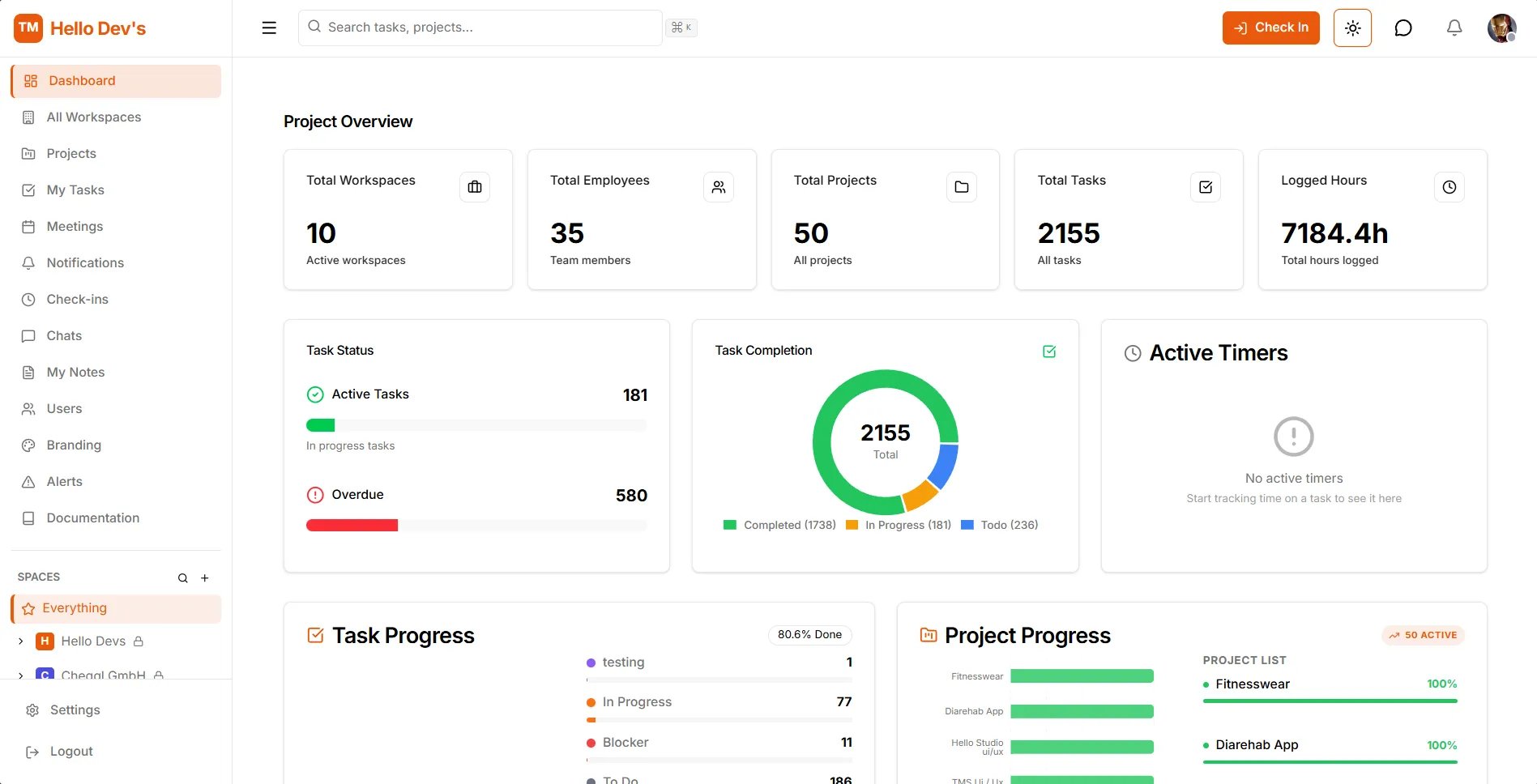
Centralized Performance Analytics
An executive overview dashboard designed to deliver real-time metrics across workspaces, tasks, and team productivity. Featuring high-level KPI cards, task breakdown charts, and progress bars, it helps managers track project completion, monitor logged hours, and identify overdue work instantly.
Behind the project management dashboard, a scheduled job pre-computes the statistics every five minutes and warms the Redis cache, so the page opens instantly even for large teams; snapshots are stored in MongoDB, so they survive a server restart. Every user can rearrange the dashboard widgets, and the layout is saved to their account.
Executive Metric Cards
Total Workspaces10Active workspacesTotal Employees35Team membersTotal Projects50All projectsTotal Tasks2155All tasksDisplay high-level metrics at a glance, including Total Workspaces, Employees, Projects, Tasks, and Logged Hours.
Under the hoodAdmins see organisation-wide totals; every team member also gets a personal view of their own tasks, projects, today's work hours and weekly hours.
Visual Task Analytics
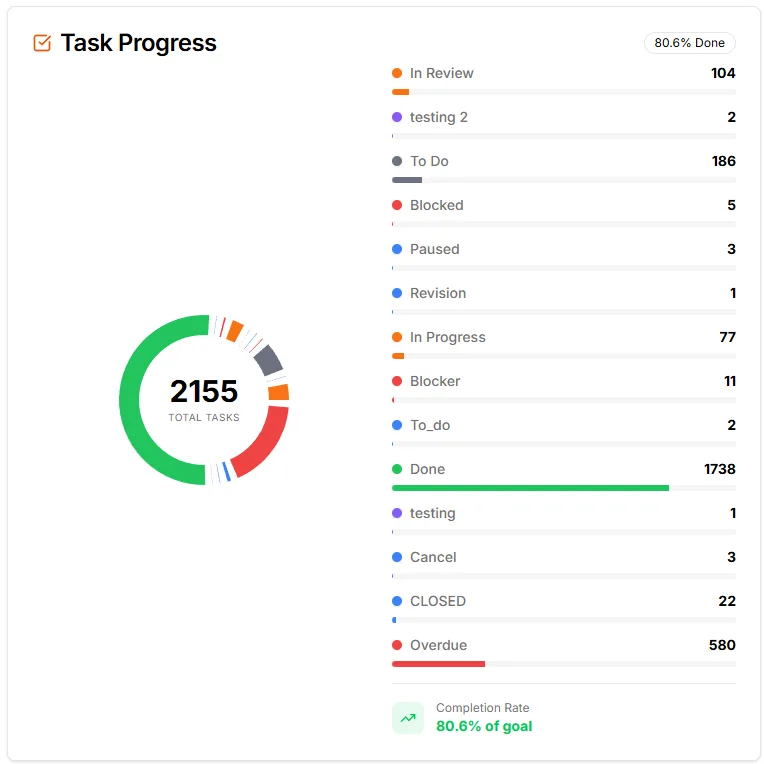
Feature donut charts and progress bars to monitor task distribution across Completed, In Progress, Overdue, and To Do statuses.
Under the hoodA daily anomaly check compares overdue tasks, weekly completions and check-ins with a rolling 28-day baseline and flags any metric that moves more than two standard deviations, so a problem shows up on the widget before anyone has to ask.
Real-Time Time Tracking
Active Timers1 runningTitleTo DoHigh0h 0m 1sStarted less than a minute ago Iron Man
Includes an active timers module to monitor live work sessions across current project tasks.
Under the hoodStart and pause a timer on any task. Every session is stored, can be corrected by hand, and rolls up into a per-task summary of everyone's time — the same data behind the Logged Hours card.
Project Progress Breakdown
Project Progress50 ACTIVEFitnesswearDiarehab AppHello Studio ui/uxTMS Ui / UxAesthetic Ad projectTESSalesQ FrontendMoonsNectarCheggl AppVideo helden / FiyloProject listFitnesswear100%Diarehab App100%Hello Studio ui/ux100%TMS Ui / Ux100%Aesthetic Ad project100%TES100%Global progress59%Total Projects50All projectsVisual progress trackers and completion percentages provide instant visibility into individual active projects.
Under the hoodEach project's percentage is calculated from its completed top-level tasks, not typed in by hand, and a global progress bar rolls the whole portfolio into a single number.
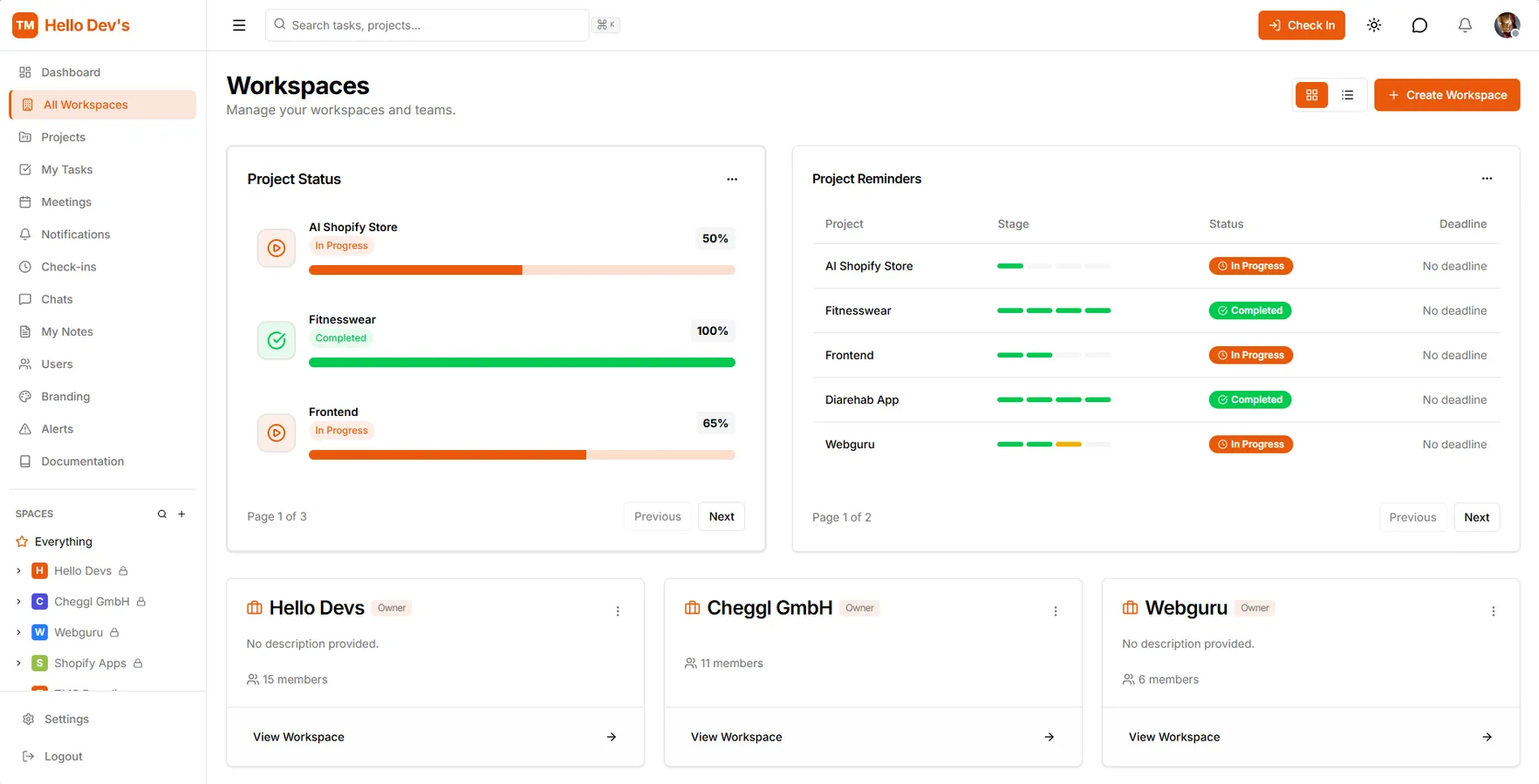
Workspaces
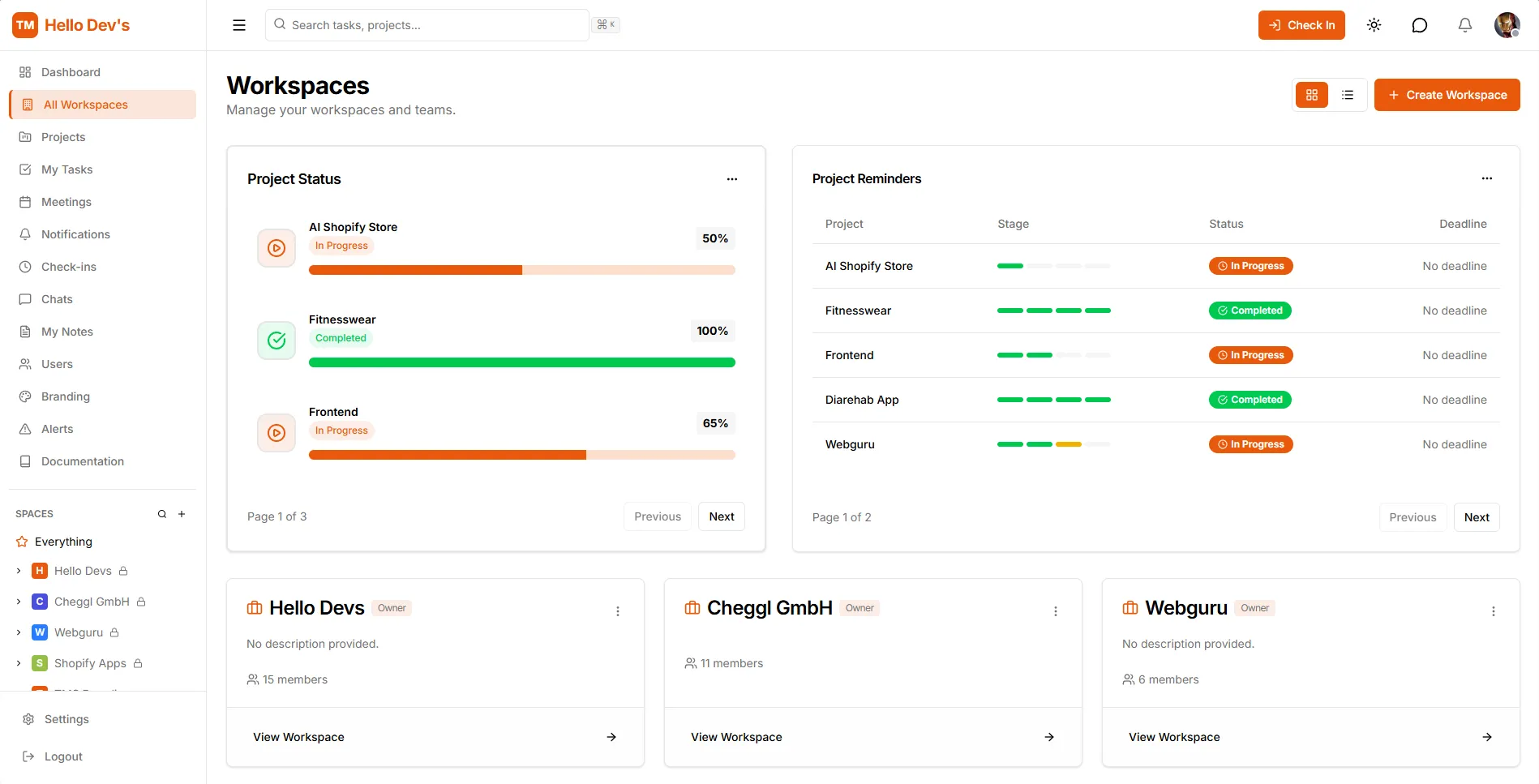
Workspaces Management
A centralized workspace directory built to manage distinct client environments, team assignments, and project lifecycles in one structured view. It provides high-level visibility into active project statuses, stage progression, and workspace ownership to keep cross-functional operations organized.
Each workspace is its own space with its own members and roles. External collaborators can join as guests limited to specific projects, with an optional expiry date, and member and project limits follow the workspace's Free, Pro or Enterprise plan.
Multi-Tenant Workspaces
Cheggl GmbHOwner11 membersView WorkspaceHello DevsOwnerNo description provided.15 membersView WorkspaceCreate and organize separate workspace cards detailing total team members, ownership roles, and dedicated environments for different clients or internal teams.
Under the hoodRole-based access control checks every read, update and delete at workspace level, and an audit trail records members added or removed, role changes, archiving and restores.
Project Status Tracking
Project StatusAI Shopify StoreIn Progress50%FitnesswearCompleted100%FrontendIn Progress65%Page 1 of 3PreviousNextTrack overall completion percentages across active projects with visual progress bars to quickly gauge client deliverable timelines.
Under the hoodProjects move through Not Started, In Progress, On Hold and Completed, and completion is worked out from finished tasks, so the bars stay honest.
Project Reminders Table
Project RemindersProjectStageStatusDeadlineAI Shopify StoreIn ProgressNo deadlineFitnesswearCompletedNo deadlineFrontendIn ProgressNo deadlineDiarehab AppCompletedNo deadlineWebguruIn ProgressNo deadlinePage 1 of 2PreviousNextMonitor critical project attributes including current stage, execution status (e.g., In Progress, Completed), and approaching deadlines in a scannable ledger.
Under the hoodA due-date scheduler warns assignees before a deadline and escalates as soon as a task becomes overdue.
Granular Task Management
To Do166TaskAI Website Phase 3Add dates In Progress70Taskquiz - builder - videoSep 18
 Done1738Taskplan page overview videosSep 18
Seamlessly navigate down into specific project workspaces to assign, track, and execute individual task workflows across team members.
Under the hoodTasks are typed as Bug, Feature, Research or Task and move across custom status columns; a whole workspace can be archived, restored, or exported in the background as JSON.
Kanban Board: team task management with statuses, sprints and filters
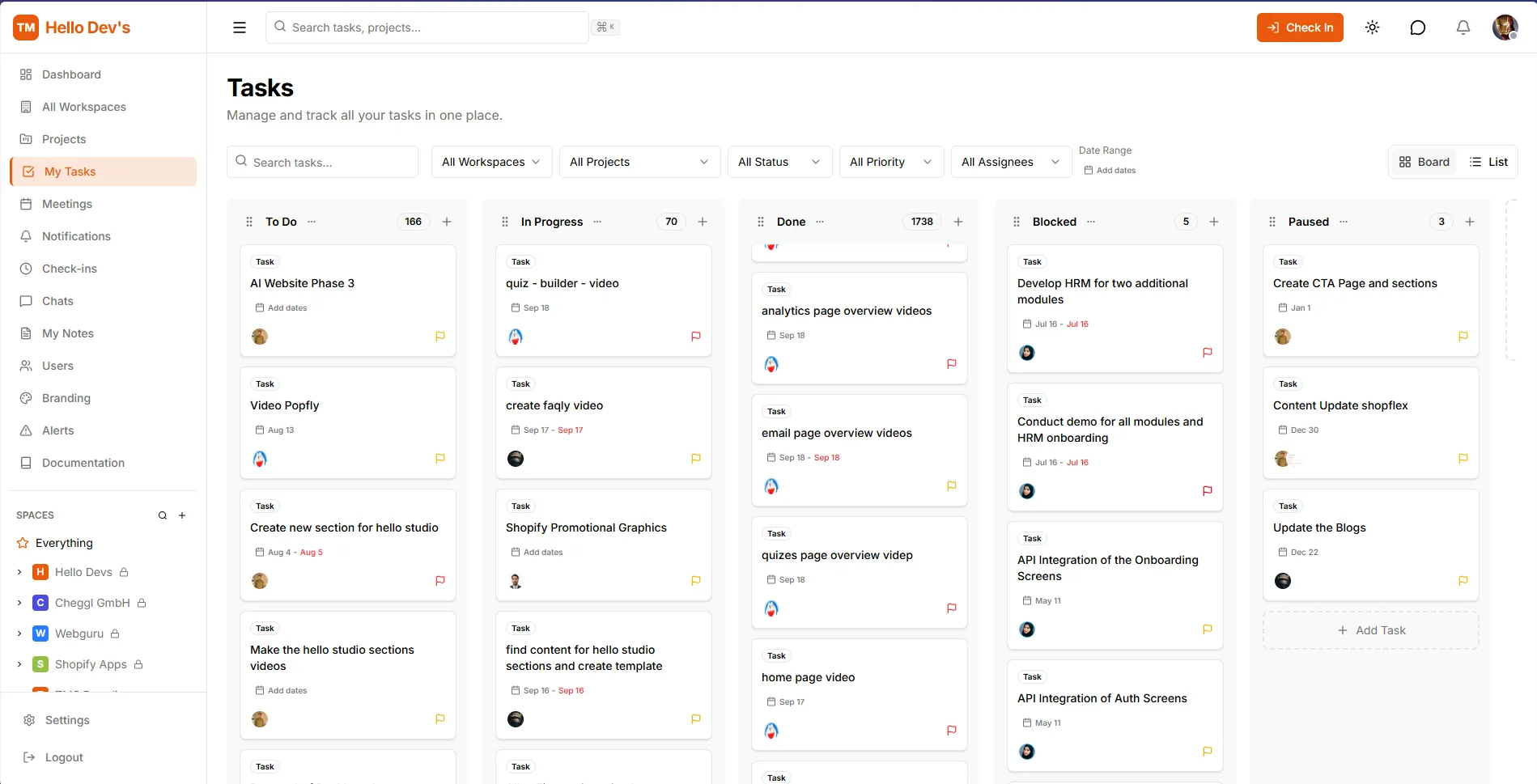
Visual Task Management
A high-density Kanban board designed to streamline task execution across To Do, In Progress, Done, Blocked, and Paused columns. Featuring global filters for assignee, priority, and date range, it helps teams track deliverables and resolve bottlenecks in a single view.
Behind the board sits a full task engine: subtasks, action-item checklists, threaded comments with file attachments, per-task timers, sprint planning and a change history on every task. The drag-and-drop board is built with dnd-kit on top of a Node.js, Express and MongoDB API.
- Task statuses, from To Do to Closed
- 11
- Tasks loaded per column, so big projects stay fast
- 50
- Due-date warning before a deadline, then overdue escalation
- 24h
- Task types: Bug, Feature, Research and Task
- 4
Live board
Interactive demo rebuilt from the board above. Scroll and watch tasks move through the workflow; the column counts follow along.
Multi-Stage Status Columns
Organize tasks effortlessly across To Do, In Progress, Done, Blocked, and Paused columns to keep sprint lifecycles clear and actionable.
- Eleven built-in statuses: To Do, In Progress, In Review, Pending, QA / Testing, Approved, Done, Blocked, On Hold, Paused and Closed.
- Sprints add burndown and velocity charts, capacity checks, retrospectives and carry-over of unfinished tasks.
High-Density Task Cards
Display essential metadata at a glance, including project labels, assignees, target due dates, and priority flags.
- Four task types (Bug, Feature, Research, Task), each with subtasks, action items and comments with attachments.
- An hourly scheduler warns assignees 24 hours before a due date and escalates tasks that go overdue.
Interactive Drag-and-Drop
Intuitive card movement lets team members update task progress instantly across columns without opening nested menus.
- Moves are permission-checked, and dropping a task into In Progress or Done stamps its start or completion time.
- Batch updates move or re-assign many tasks at once.
Granular Multi-Filters
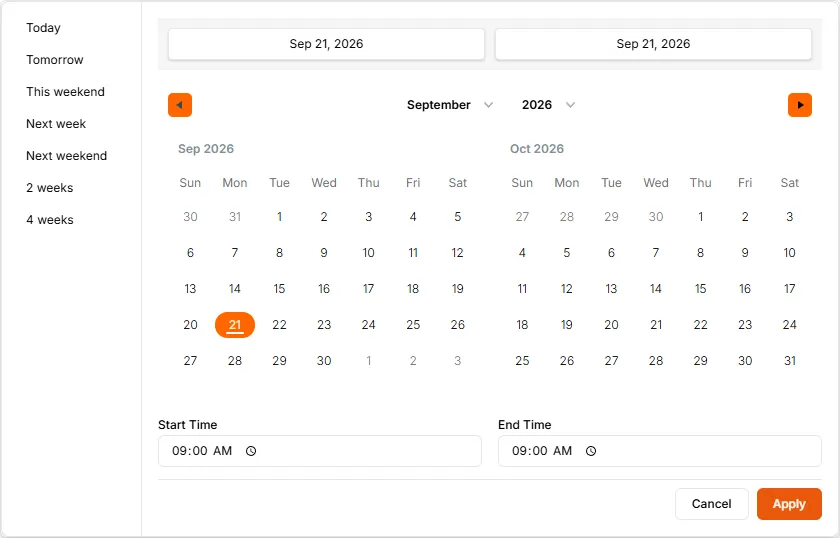
Quickly refine your view using real-time filters for Workspace, Project, Priority, Status, Assignee, and Date Range.
- Search, tags, sprint and backlog filters narrow the board further.
- Any filtered task list exports to CSV in one click.
Check Ins: attendance and time tracking
Check-in Sessions
Track your daily work hours and productivity.
Interactive demo: nothing is sent or stored
Today's Status
Not checked in
Reminder at 9:30 AM on weekdays
Current Streak
12 Days
Best: 18 Days
This Month
118.5h
Total hours logged
On Time Rate
94%
Check-in consistency
Hours Overview
Sep 14 - Sep 20, 2026
Daily Attendance & Productivity Hub
An automated time-tracking interface designed to record daily team check-ins, log working hours, and monitor attendance consistency. Featuring personal and team overviews, interactive streak tracking, and dual history views (table and calendar), it provides clear visibility into daily work patterns and total overtime.
Scheduled jobs keep the data honest: they remind people to check in and out, close sessions that run past ten hours and cap countable time, so attendance and overtime reports start from clean numbers.
- Check in from the top bar on any screen
- 1-click
- Sessions auto-close and countable time is capped
- 10h
- Weekday reminder for anyone not checked in
- 9:30
- Weekday reminder for anyone still checked in
- 18:00
Real-Time Check In
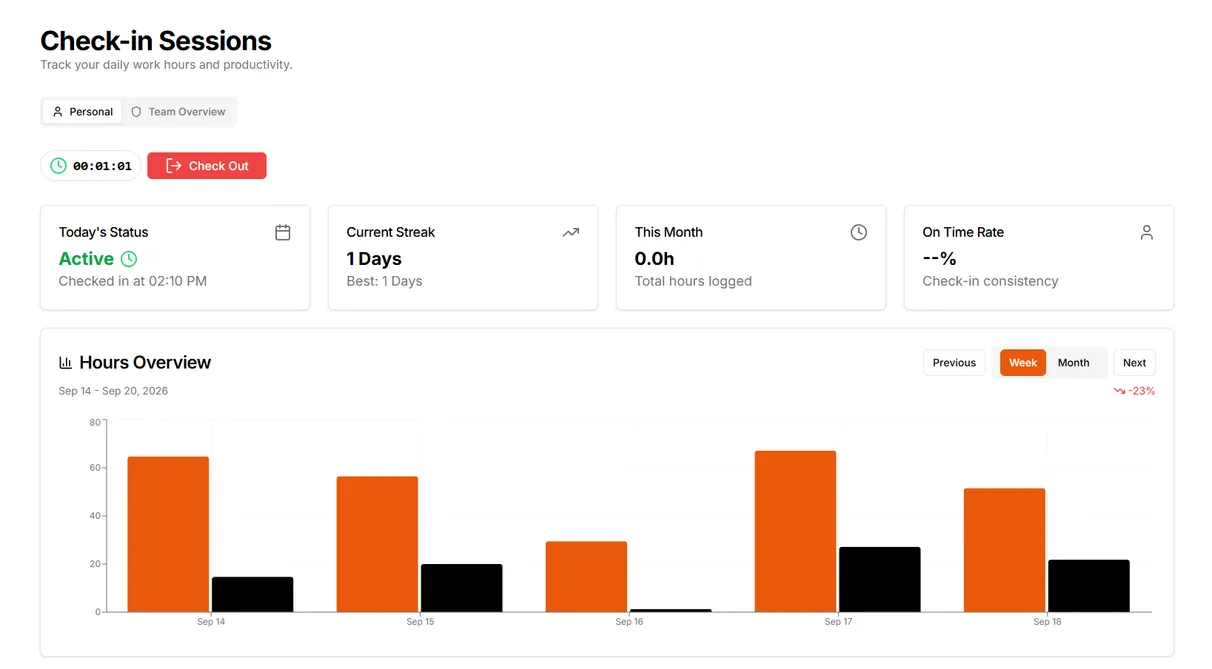
Track today's status, active day streaks, total hours logged, and on-time rate with instant one-click check-ins.
- One active session at a time: check out for a break, then check in again for a split day.
- On-time rate compares each check-in with the person's own work schedule (09:00 by default); streaks skip weekends.
Hours Overview Analytics
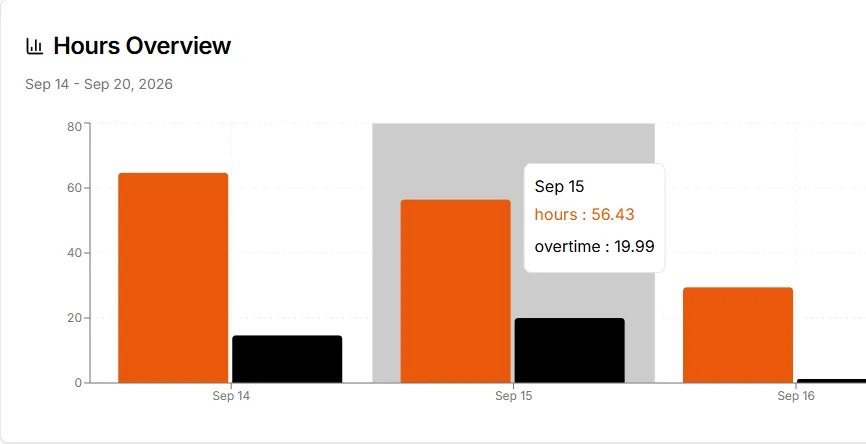
Visualize weekly and monthly working hour trends using dynamic bar charts to monitor team productivity.
- Daily and monthly summaries, plus a team summary for every workspace.
- Sessions longer than 10 hours are closed automatically at 00:00 and 12:00 UTC, and the person is notified.
Session Ledger (Table View)
Review granular daily timestamps, including multi-session check-in/out times, total hours, overtime, and live status badges.
- At check-out people can log productivity (1 to 5), mood, tasks completed and blockers.
- Admins and HR see who is checked in right now and can review, approve or reject a session.
Visual Check-In Calendar View
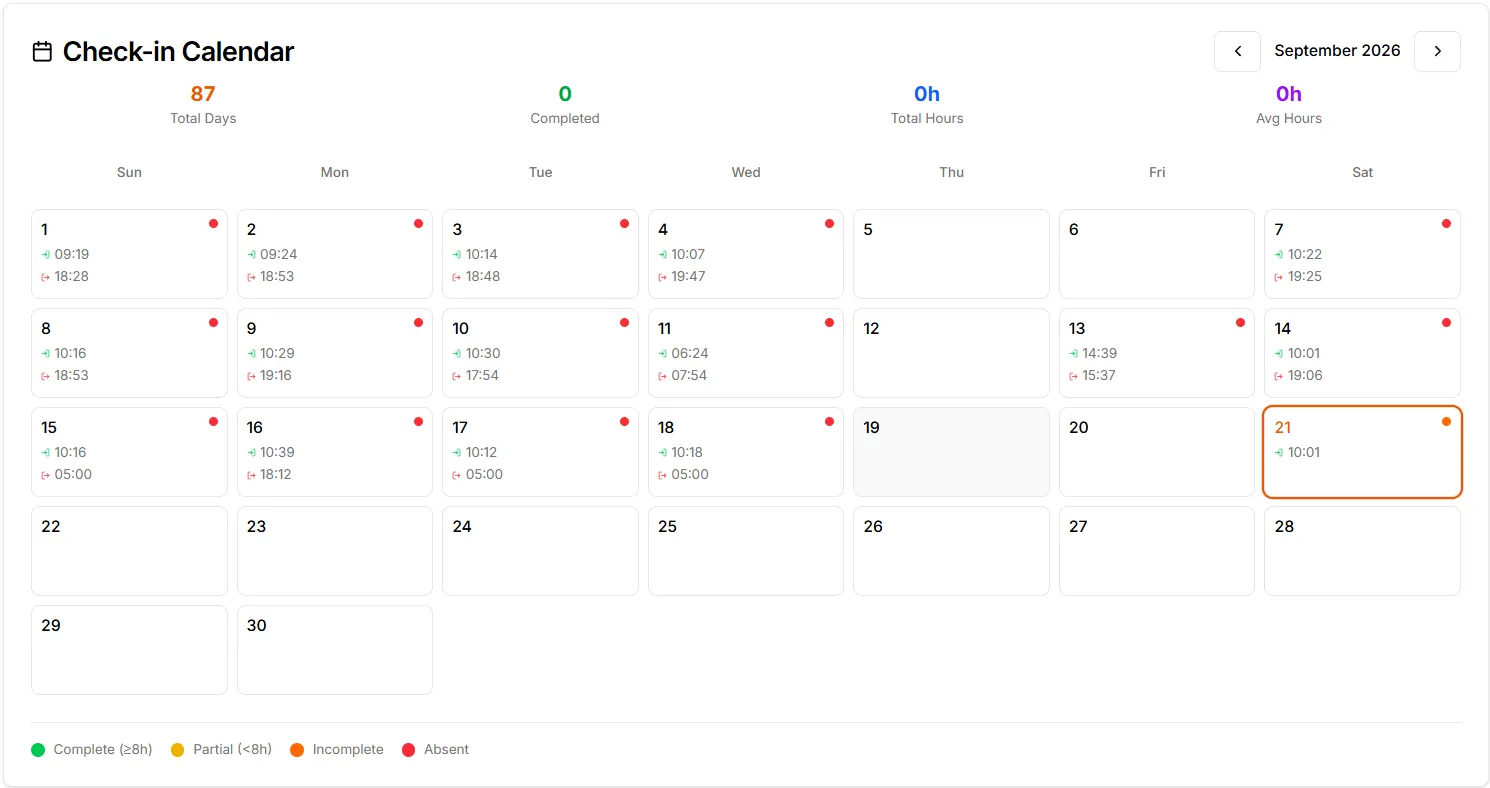
Track monthly attendance at a glance with color-coded status indicators for Complete, Partial, Incomplete, and Absent days.
- Weekday reminders go out at 9:30 AM to anyone not checked in and at 6:00 PM to anyone still checked in.
- A session left open from a previous day closes itself at the next check-in.
Features of the TMS team management system: chat, notes, documents, white-label branding and meetings
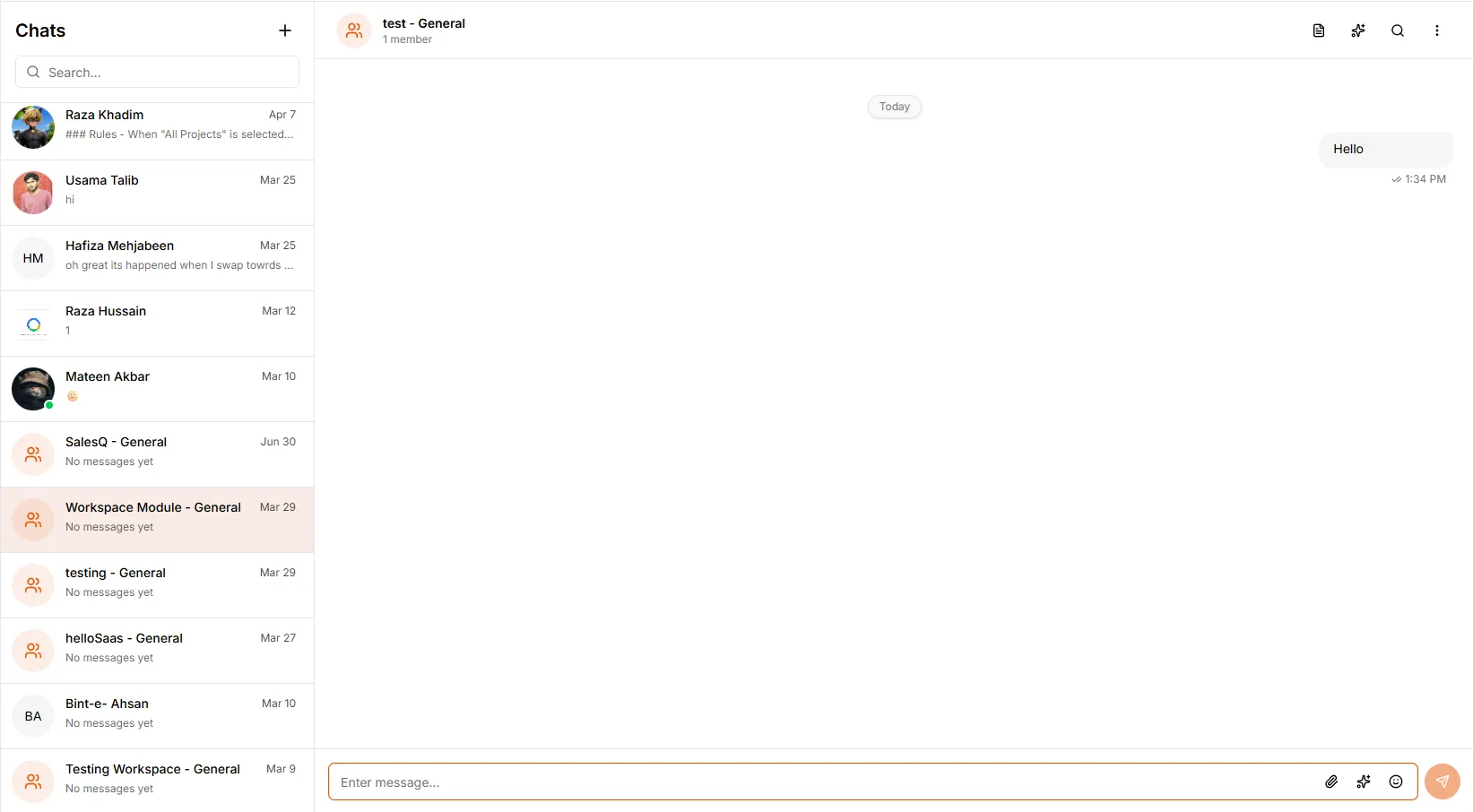
Team Chats & Direct Messaging
Facilitate seamless real-time communication through one-on-one direct messages, group threads, and dedicated project channels to keep discussions contextual and accessible.
- Real-time over Socket.IO
- Typing indicators and read receipts
- Replies, reactions and file sharing
- AI message drafts and chat summaries
- Scheduled stand-up reminders
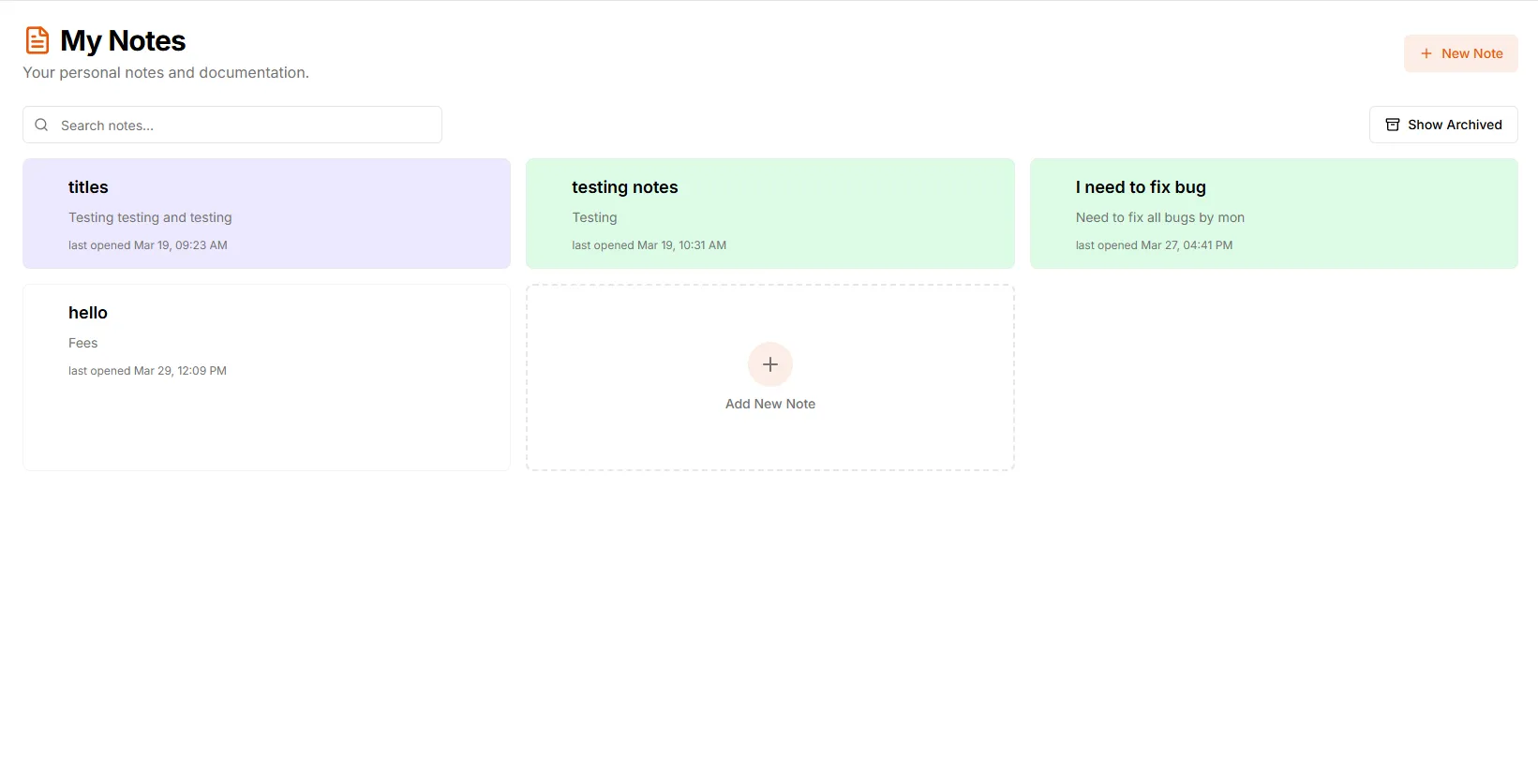
Personal Notes & Scratchpad
Organize daily priorities, draft quick ideas, and store personal references using clean, color-coded digital note cards equipped with instant search and archive filtering.
- Colour-coded note cards
- Personal or project notes
- Instant search
- Archive and restore
- Last-opened timestamps
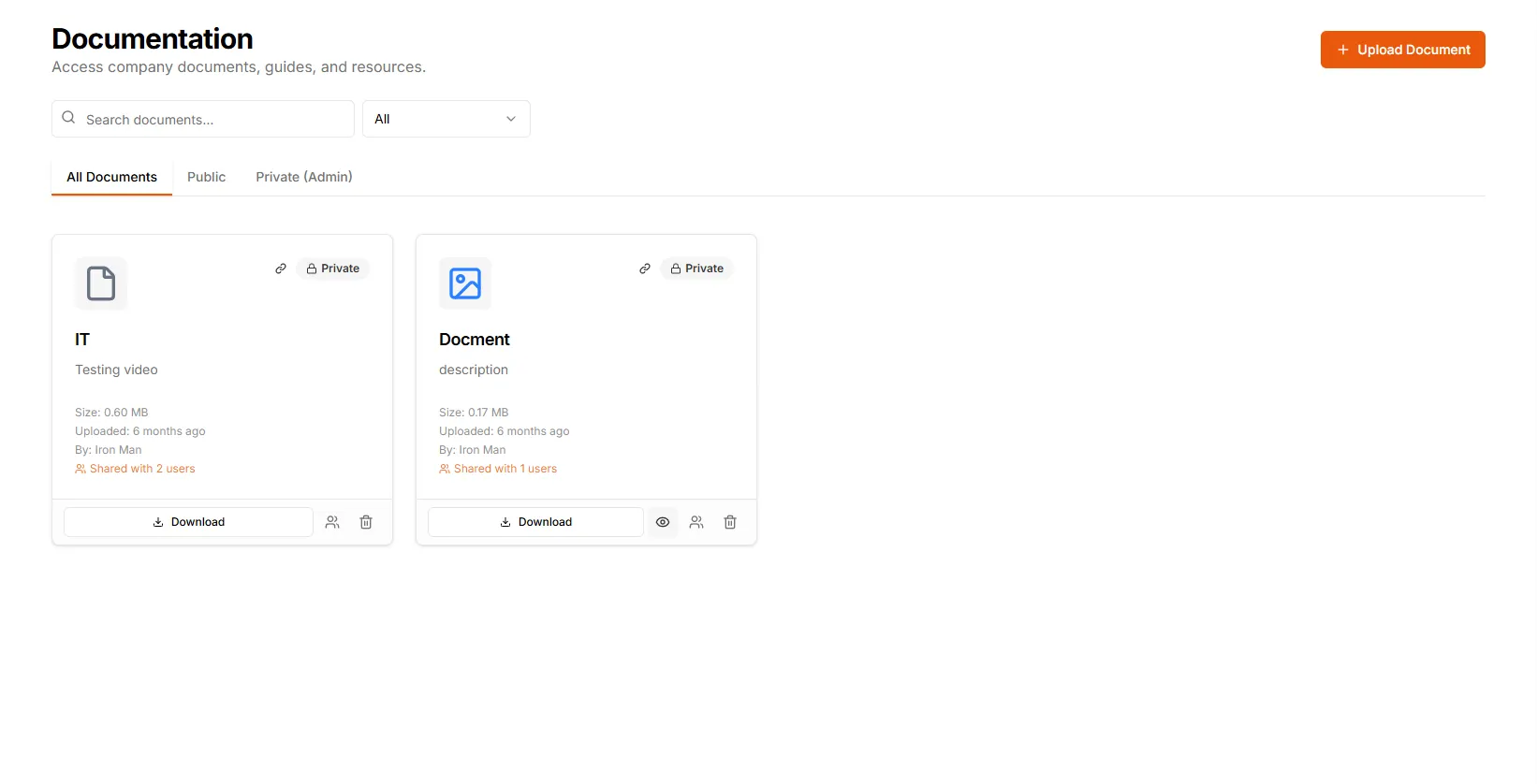
Centralized Documentation
Maintain an accessible knowledge base with upload capabilities, file size tracking, and granular privacy controls to separate public team resources from restricted admin files.
- Public and private (admin) libraries
- Share with specific teammates
- File size and uploader tracking
- Categories and tags
- Search and one-click download
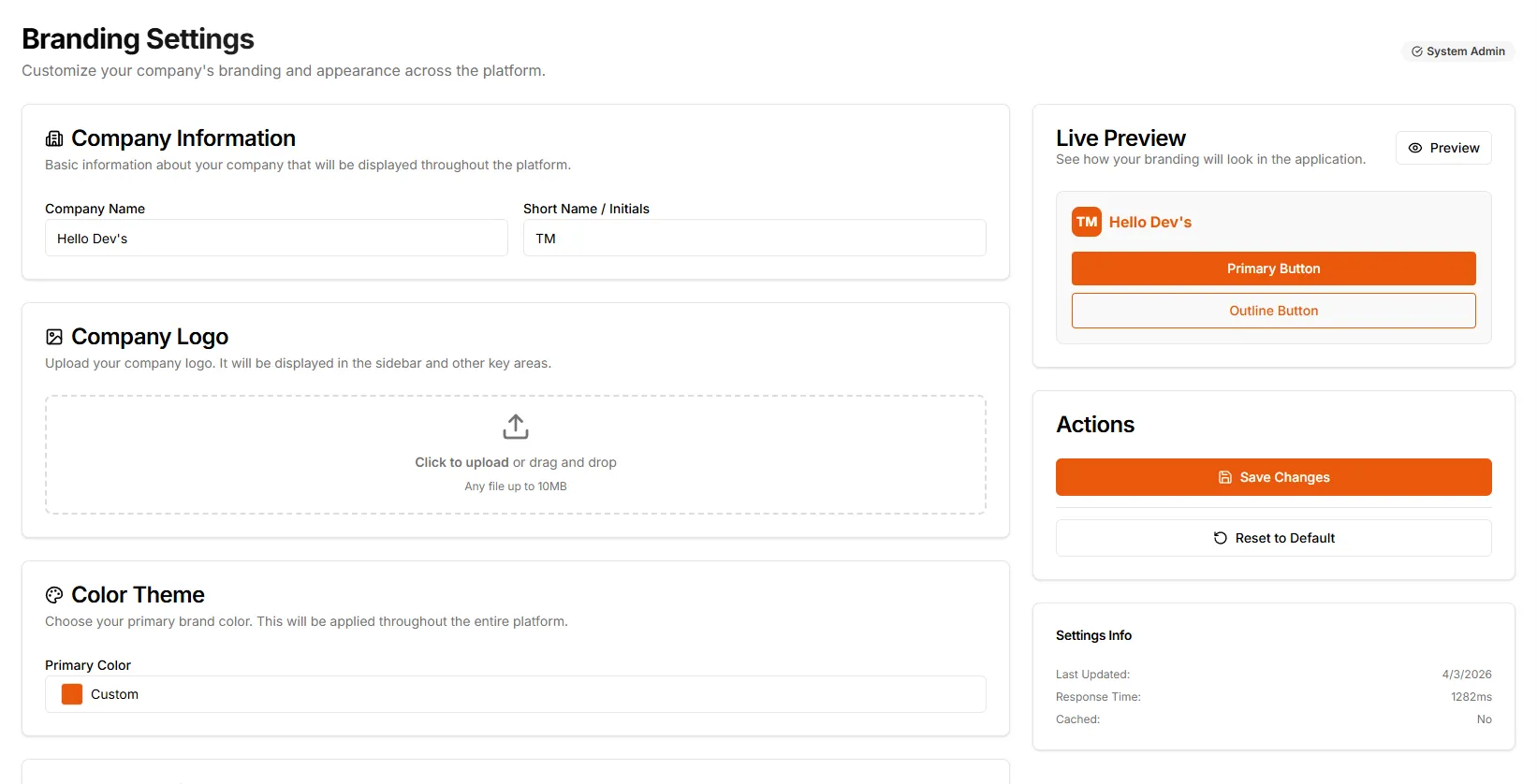
White-Label Branding Settings
Tailor the entire platform experience to match your company's identity with custom logo uploads, primary accent palette configurations, short-name initials, and real-time live UI previews.
- Company name and initials
- Logo upload
- Primary colour theme
- Live preview before saving
- Organisation-level OpenAI key
Try a primary colour
Integrated Meetings Calendar
Coordinate and manage team syncs directly within the platform, ensuring clear visibility over upcoming schedules without disrupting daily project execution.
- Online or in-person, with link or room
- RSVP for teammates and external guests
- Agenda items and attachments
- Reminders 15, 30 or 60 minutes before
- Upcoming, completed and cancelled
AI &Automation
TMS does more than store work. An OpenAI-powered assistant turns a written brief into a ready-to-plan project, background schedulers chase check-ins, due dates and anomalies around the clock, and every change reaches the team in real time.
AI project generation
From a brief to a planned project
Upload a PDF or Word brief, or just describe the job. A background worker reads it, names the project, writes the description and breaks the work into prioritised tasks with subtasks, ordered from planning to launch. Tasks land in To Do, unassigned, so the team decides who does what.
What the AI does inside TMS
Project from a document
PDF or Word brief in, project title, description, 5–15 tasks and up to six subtasks each out, processed as a background job.
Tasks from a prompt
Describe the work in a sentence and get action-oriented tasks with descriptions and priorities, skipping ones that already exist.
Subtasks and checklists
Break any task into subtasks or checklist action items generated from its description.
Titles and descriptions
Streamed, structured titles and descriptions for tasks and workspaces, written as you watch.
Rewrite and enhance
Rewrite any text by instruction: shorter, clearer, more formal, turned into a list.
Task summaries and advice
Summarise a long task in bullet points or get suggestions to make it clearer and easier to deliver.
Chat drafting and recaps
Draft a message from a prompt in context, or summarise a long conversation into key points.
- Each organization can connect its own OpenAI API key in Settings, and AI is switched on per plan.
Automation, around the clock
Schedulers that run the admin
Cron schedulers and Redis-backed queues handle the routine checks a team lead would otherwise do by hand.
00:00
Sprint burndown
Records daily progress for every active sprint, so burndown and velocity charts draw themselves.
Auto check-out
Closes any check-in open for more than 10 hours, caps the day at 10 hours and notifies the person. Runs again at 12:00.
06:00
Anomaly detection
Compares today with a rolling 28-day baseline and flags overdue-task spikes, dropping completions, unusual check-in counts or active users beyond two standard deviations.
08:00
Meeting daily summary
Sends each person a summary of the day's meetings.
09:30Mon–Fri
Check-in reminder
Nudges members who have not checked in yet, only in organizations that use check-ins.
12:00
Auto check-out
Second daily sweep for forgotten check-ins over 10 hours.
18:00Mon–Fri
Check-out reminder
Reminds anyone still checked in to check out for the day.
Always running
Every minute
Meeting reminders
Reminds attendees before a meeting starts.
Every 5 minutes
Dashboard snapshots
Pre-computes dashboard stats so dashboards load instantly and survive restarts.
Every hour
Due-date warnings
Warns about tasks due within 24 hours and escalates overdue ones, once each.
On demand
Background queues
Notifications, chat reminders, sprint completion, workspace export and AI project generation run on Redis queues with retries.
Real-time layer
Everyone sees the change as it happens
Socket.IO pushes more than 60 kinds of live events: task and subtask updates, comments, sprint moves, timers, check-ins, chat messages, typing and presence. Notifications respect each person's preferences and also go out as push notifications and email.
Everythingin one MVP
Most teams stitch together a project tool, a time tracker, an HR system and a chat app. TMS ships them as one multi-tenant SaaS: work, time, people, collaboration and administration share one login, one permission model and one live data layer.
- API route modules
- 53
- REST endpoints
- 440+
- Data models
- 53
- Real-time event types
- 60+
- Scheduled jobs
- 10
- Background queues
- 5
Counted from the TMS codebase (production routes only).
28 modules · 5 areas · one login
Work
6Workspaces
Separate spaces per team or client with members, roles, archive and background export.
Projects
Members, timeline, health, velocity and task stats per project.
Tasks
Subtasks, checklists, comments, files, batch edits and CSV export.
Kanban board
Drag-and-drop columns by status, updated live for everyone.
Sprints
Start and complete sprints with burndown, velocity, capacity, retros and carry-over.
Meetings
Scheduling, RSVP, notes, attachments and reminders.
Time
4Check-ins
Check in and out with streaks, daily and monthly summaries and admin review.
Task timers
Start and pause timers on tasks, edit sessions and see time summaries.
Shifts
Shift templates and assignments, plus each person's own shift.
Attendance
Monthly attendance and team check-in summaries per workspace.
People
5HRM dashboard
Headcount stats, recent HR activity and attendance at a glance.
Leave
Leave types, policies, balances and requests with validation and approvals.
Holidays
Company holiday calendar managed by admins.
Payroll
Payroll profiles, adjustments, pay runs, payslips and payroll reports.
Team and invites
Invite people by link, manage profiles and org membership.
Collaboration
5Chat
Direct messages, groups and project channels with reactions, edits, read receipts and reminders.
Notes
Personal and project notes you can reorder and reopen where you left off.
Documentation
A shared knowledge base with uploads and access control.
Notifications
In-app, push and email with per-person preferences.
Alerts
Admin announcements from templates, with seen and acknowledge tracking.
Admin
8Organizations
Multi-tenant orgs above workspaces, with members and invitations.
Roles and permissions
System and custom roles with resource-level permissions (RBAC).
Billing
Stripe plans from Free Forever to Enterprise, plus add-ons per organization.
Branding
White-label logo, accent colour and initials with a live preview.
Assets
Company equipment by category and location, assignment, returns and maintenance.
Tickets
Internal help desk with categories, custom statuses, assignment and comments.
Activity log
Who changed what, per task, project and user.
Dashboards
Role-based dashboards with cached snapshots and anomaly badges.
Built with
- Next.js
- React
- Node.js
- Express
- MongoDB
- Redis
- Bull queues
- Socket.IO
- OpenAI
- Stripe
- Firebase Cloud Messaging
- Docker
Design System of TMS: Inter type scale and the orange brand palette
TMS keeps every workspace, sprint and check-in in one calm interface. Managers turn a brief into a full project plan with AI, teams drag tasks across the Kanban board in real time, and HR runs attendance, leave and payroll from the same data. Inter carries all of it: crisp at 12px in a busy table, confident at 32px in a page heading, and easy on the eyes through a long working day.
Frequently asked questions about building a SaaS MVP like TMS
What founders and teams ask us before we build a SaaS MVP, an internal tool or AI features like the ones in TMS.
Ask us anythingIt depends on how many modules the first release needs. We scope an MVP around the one workflow your users can't do without, ship that, then add modules on a stable base. TMS shows where that can lead: projects, Kanban and sprints sit next to check-ins, HR, payroll and chat in one multi-tenant app. After a scoping call we give you a timeline and a feature list for the first release.
We put AI inside a workflow people already use and run it in the background. In TMS a user uploads a PDF or Word brief; a queued job extracts the text, and OpenAI drafts the project name, description and 5 to 15 prioritised tasks with subtasks, created unassigned in To Do so the team stays in charge. Each organization can connect its own OpenAI API key. We build the same pattern into other products: drafting, summarising, classifying and generating structured data.
Yes. In TMS every account belongs to an organization that sits above its workspaces, so each tenant's data stays separate. System and custom roles control access per resource, Stripe handles the plans, and add-ons such as HRM, payroll or AI are switched on per organization. We set up the same foundations for client products, so billing and permissions don't have to be rebuilt later.
Yes. TMS pushes more than 60 kinds of live events over Socket.IO, from Kanban moves and comments to timers, check-ins, chat messages, typing indicators and presence, and sends push notifications through Firebase Cloud Messaging. We use the same approach for dashboards, chat, collaboration and live status in client apps.
Yes. Scheduled jobs and queues do the chasing in TMS: check-in reminders on weekdays, due-date warnings and hourly escalation of overdue tasks, nightly sprint burndown, and a daily check that flags dashboard numbers drifting from their 28-day baseline. Jobs run on Redis-backed queues with automatic retries, so a failed step is tried again instead of lost.
Yes. TMS is our own product and we use it to run the Webguru team, so we know what an internal tool has to get right: fast daily use, roles that match how the company works, and reports people trust. We build internal tools, admin panels and team dashboards for clients the same way.
We pick it per project. TMS runs on Next.js and React with Tailwind CSS on the front end, and a Node.js and Express API with MongoDB, Redis and Bull queues, Socket.IO, OpenAI, Stripe and Firebase Cloud Messaging behind it, packaged with Docker. For most web SaaS products a similar JavaScript stack keeps one language across the codebase and makes hiring easier later.
TMS is live at team.webguru.pk. If you want a team management system, a SaaS MVP or AI features in an existing product, tell us what you want to build and we will scope the first release with you.